Enable iCloud Sync
We rely on iCloud to sync data. If the iCloud Sync option is disabled in the app, it means the app can’t access your iCloud account on your device for some reason (technically, we’re checking whether your iCloud account is available via CKAccountStatus). To enable it, check the following:
iOS/iPadOS
-
Turn on iCloud Drive (or the Documents & Data feature) on your iCloud account
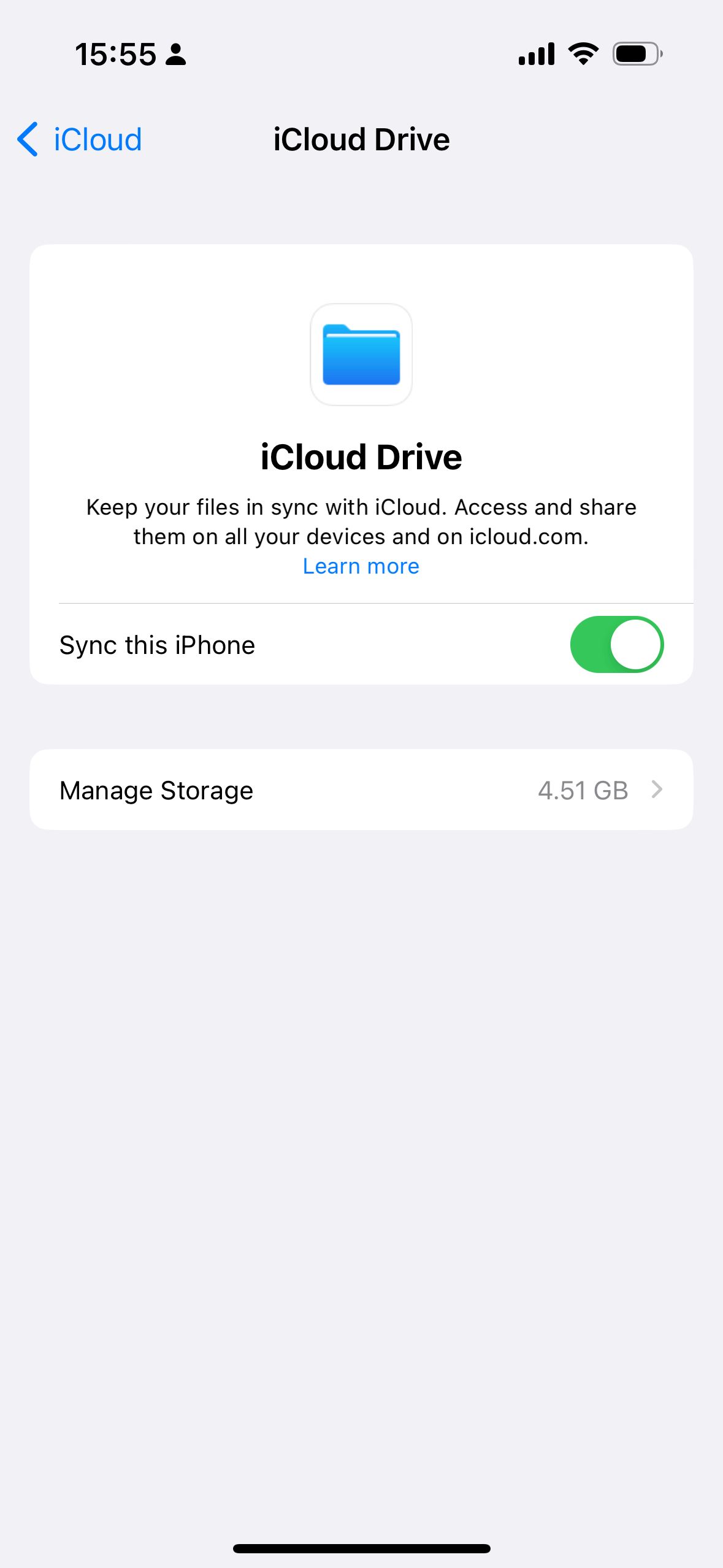
-
Go to
Settings (System)→Apple ID→iCloud→Show Alland make sure you checkExpenses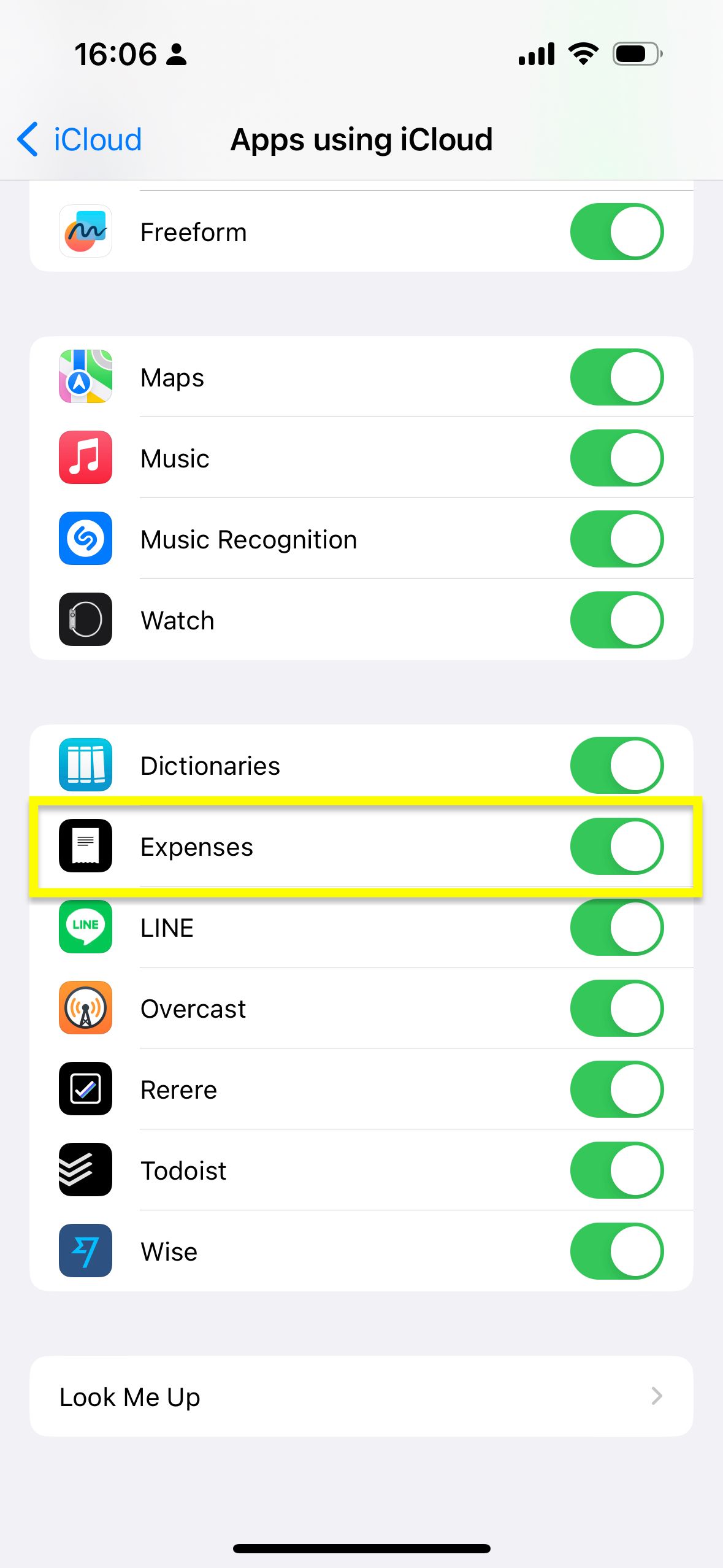
-
Relaunch the app so it properly reflects the change
-
In Expenses, open
Settings->Sync, then turn oniCloud Sync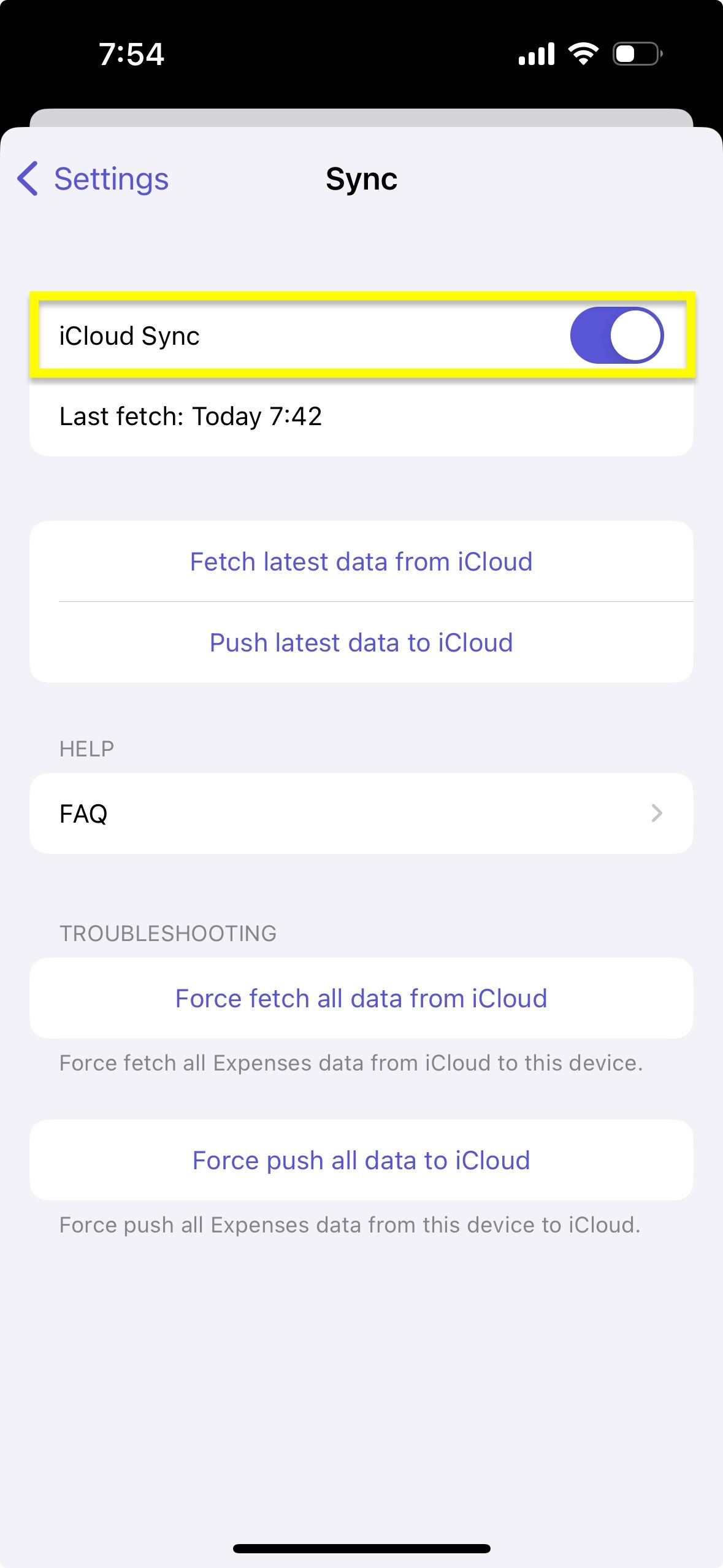
macOS
-
Turn on iCloud Drive (or the Documents & Data feature) on your iCloud account
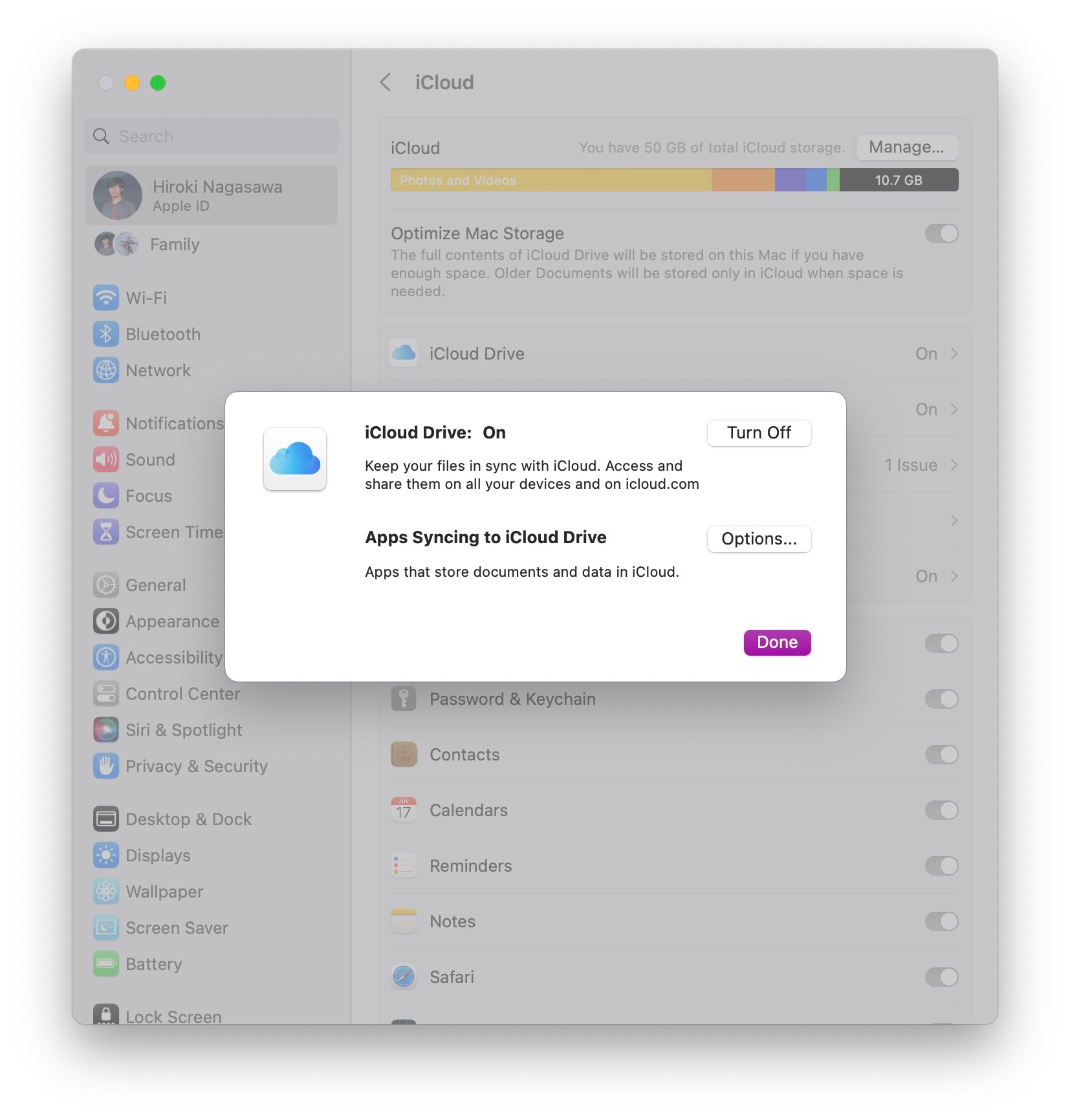
-
Go to
System Settings (System)→Apple ID→iCloud Drive (Documents)and make sure you checkExpenses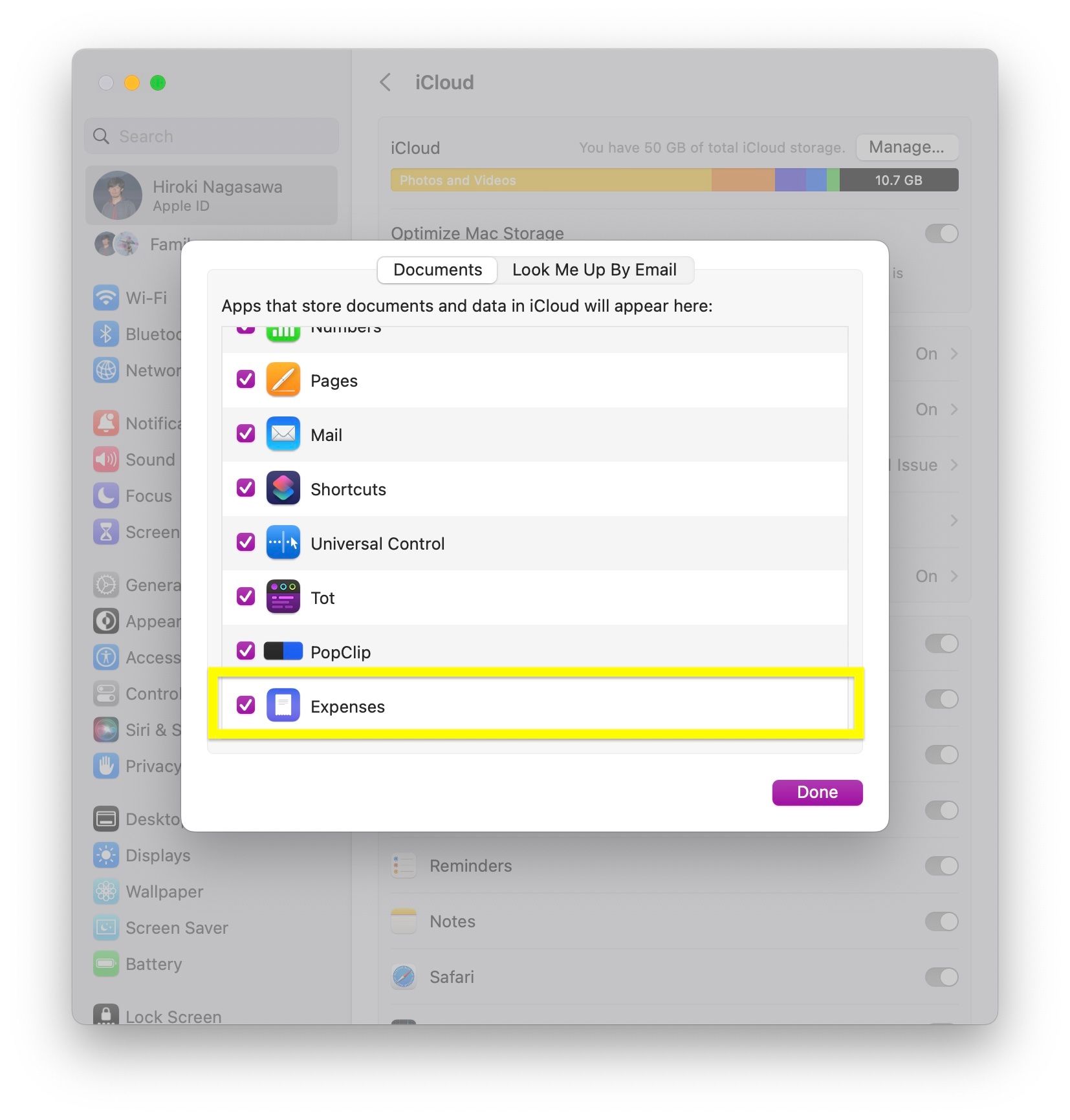
-
Relaunch the app so it properly reflects the change
-
In Expenses, open
Settings->Sync, then turn oniCloud Sync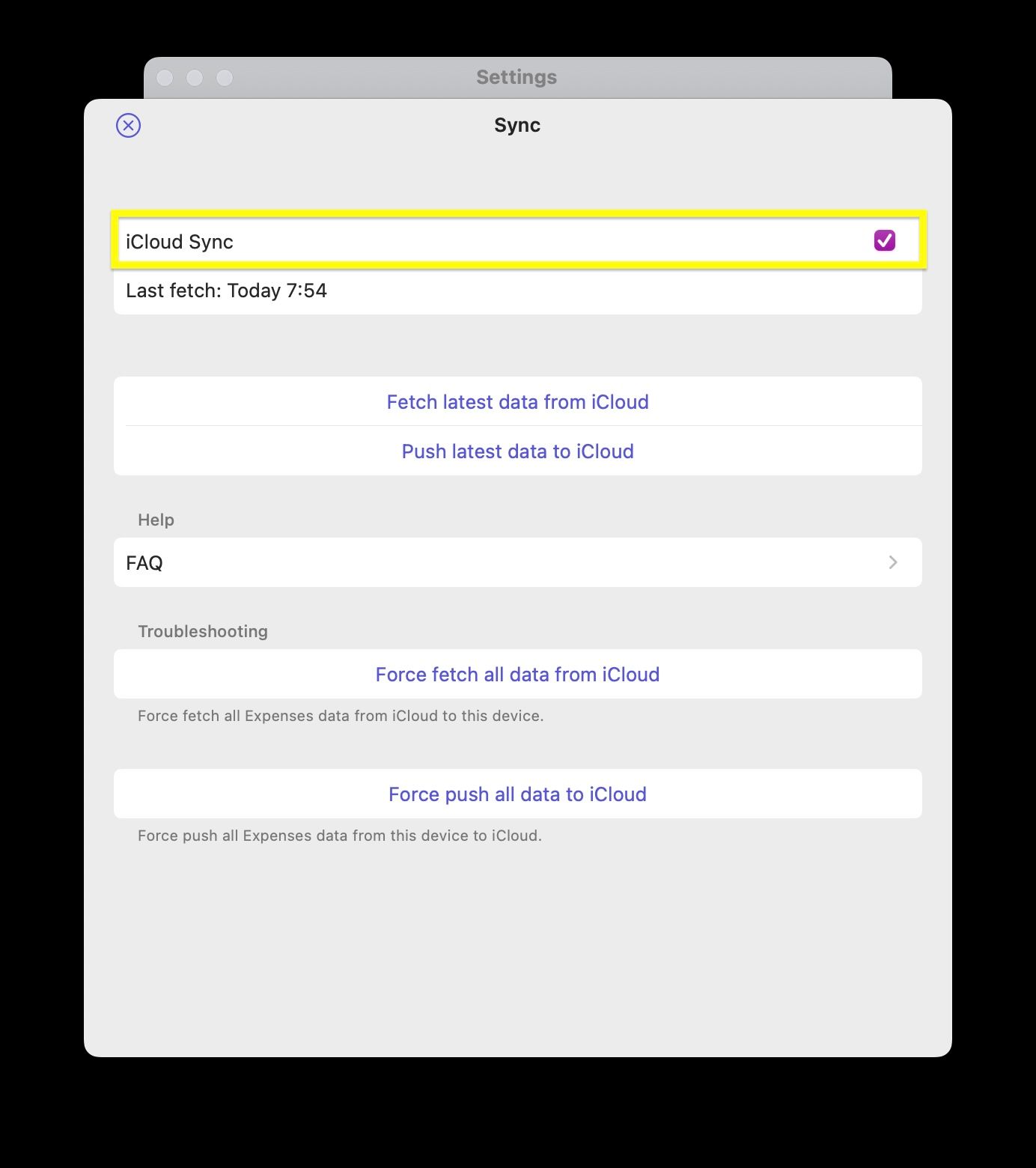
If it still doesn’t work, try the following:
- Check Troubleshooting iCloud Sync
- Sign out of iCloud on your device and sign in to iCloud again
- See if there is any error or warning on your iCloud account
- Check if parental controls, device management, or incomplete setup for two-factor authentication might deny access to iCloud account credentials
- Restart your device or reinstall the app
If you still have questions, we're here to help. Please get in touch and we'll respond shortly.