Import Transaction from Wallet
You can import transactions from Transaction Trigger via your Apple Wallet. Follow the steps below:
-
Go to the “Automation” tab in the Apple Shortcuts app.
-
Tap the ”+” button to create a new automation.
-
Select “Wallet” and set up “When I tap” (select a card to trigger an automation whenever it’s tapped), plus any other options you need.
-
Tap “Next,” then select “Create New Shortcut.”
-
Search for the “Import transaction” action from Expenses and tap it to add.
-
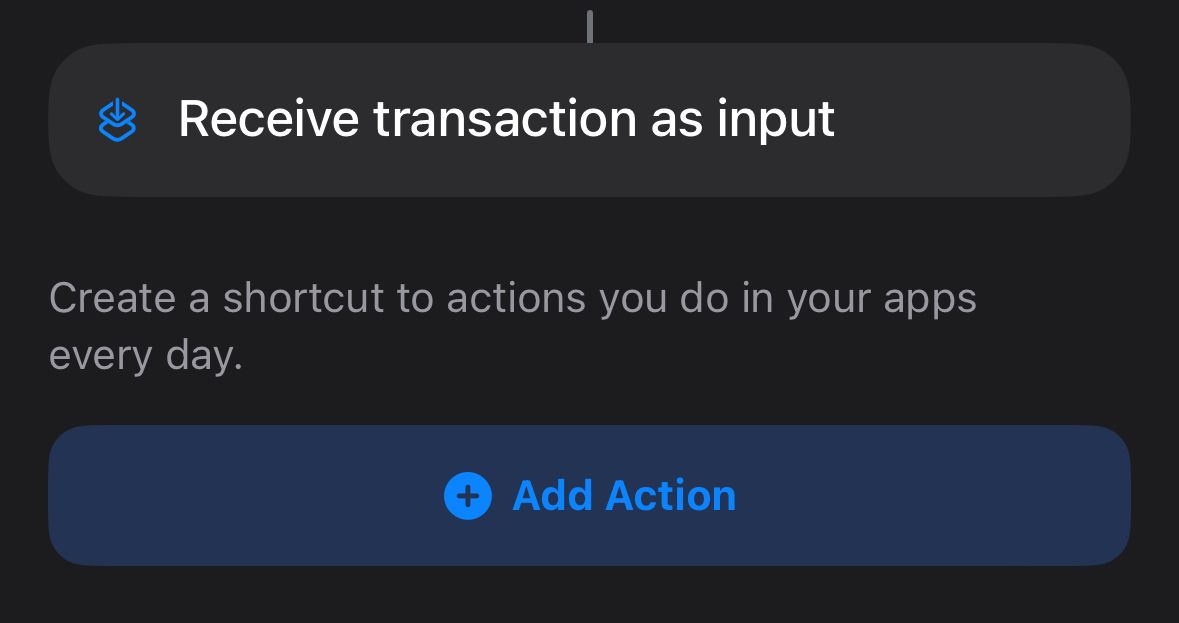
Make sure you see “Receive transaction as input” at the top of the action.
-
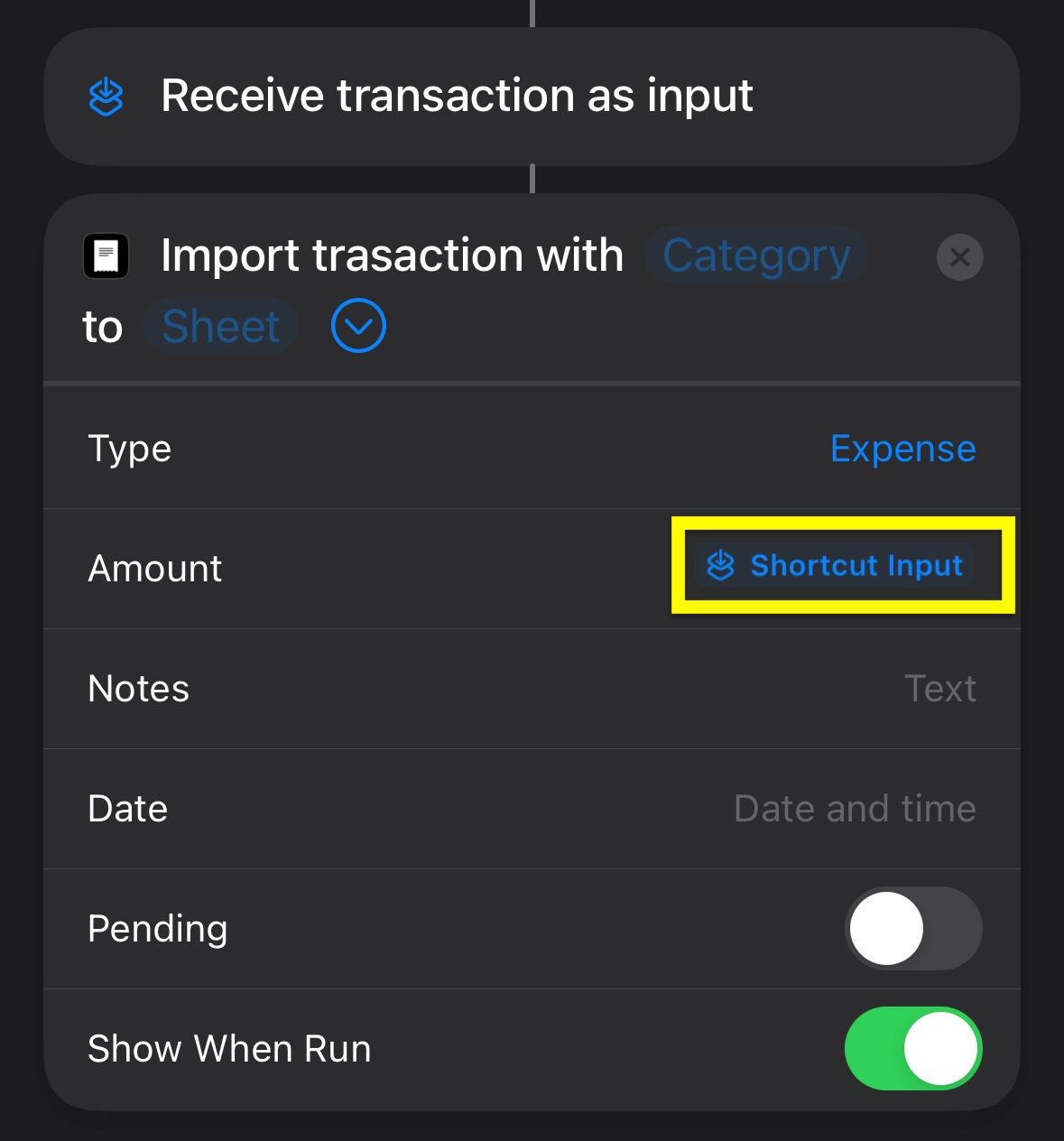
Edit “Amount” (Text) and add “Shortcut Input” from the “Variables” section.
-
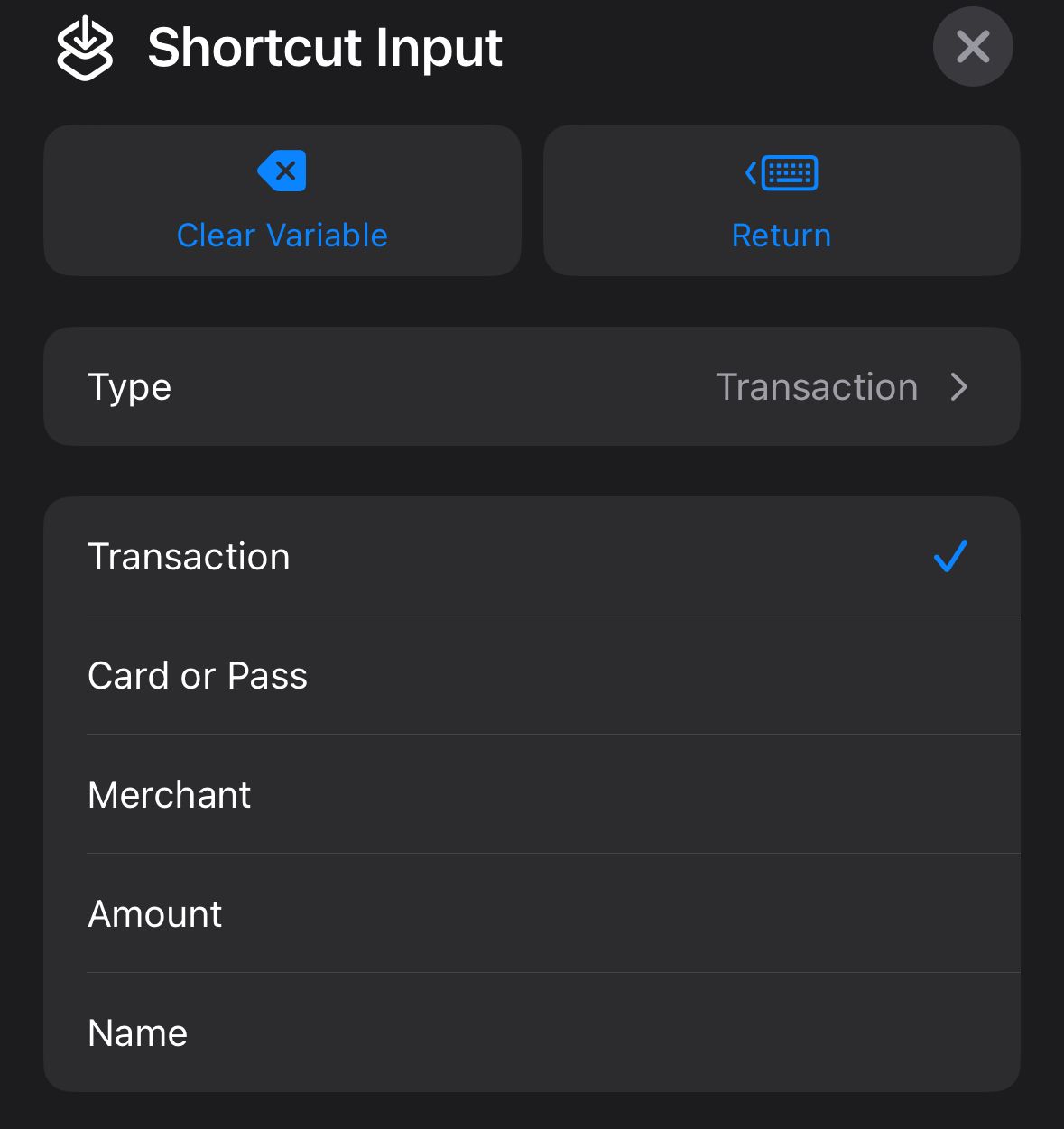
Tap “Shortcut Input” and select “Amount” from the input list.

-
Edit other parameters if needed (e.g., add “Merchant” from the “Shortcut Input” section to the Notes field).
-
Tap “Done” to create the automation.
If you still have questions, we're here to help. Please get in touch and we'll respond shortly.