Passcode Lock
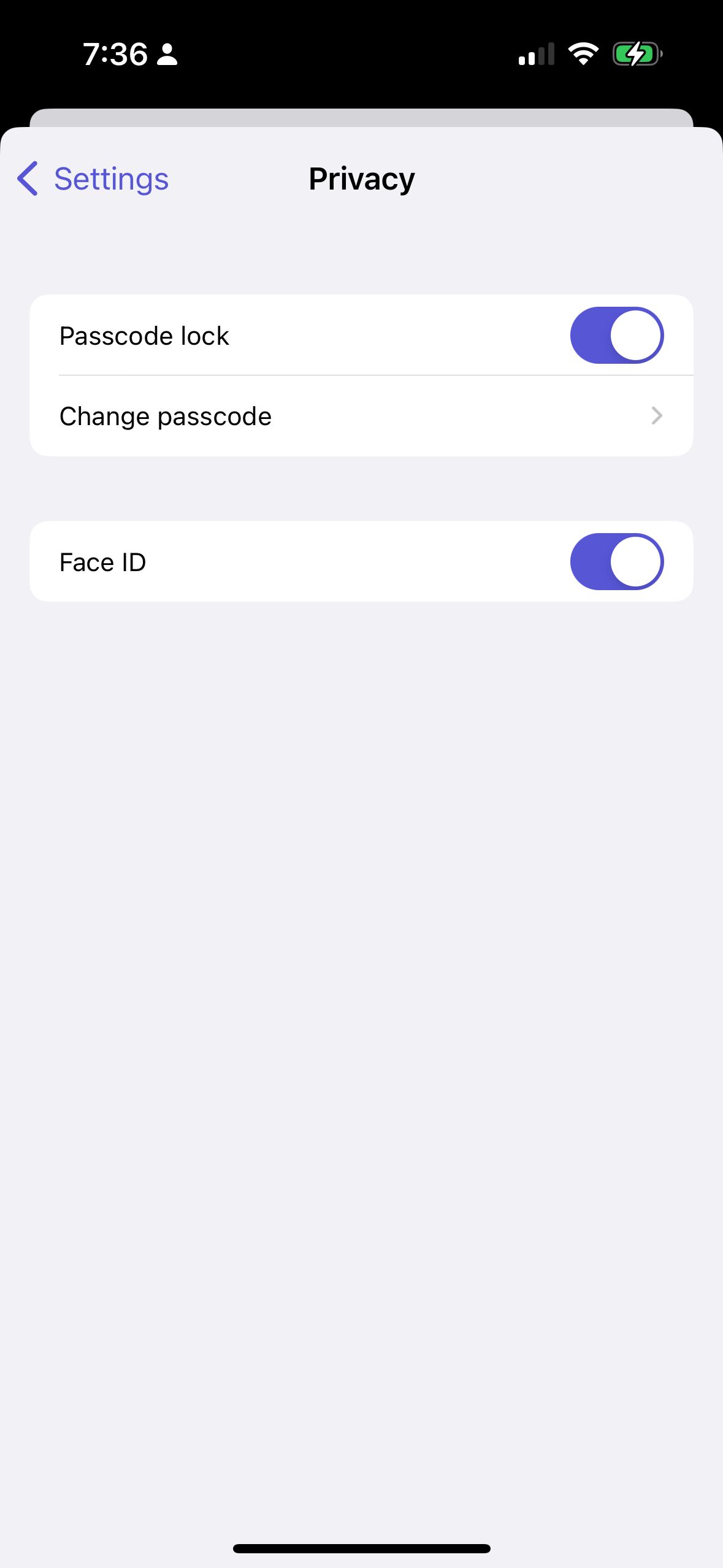
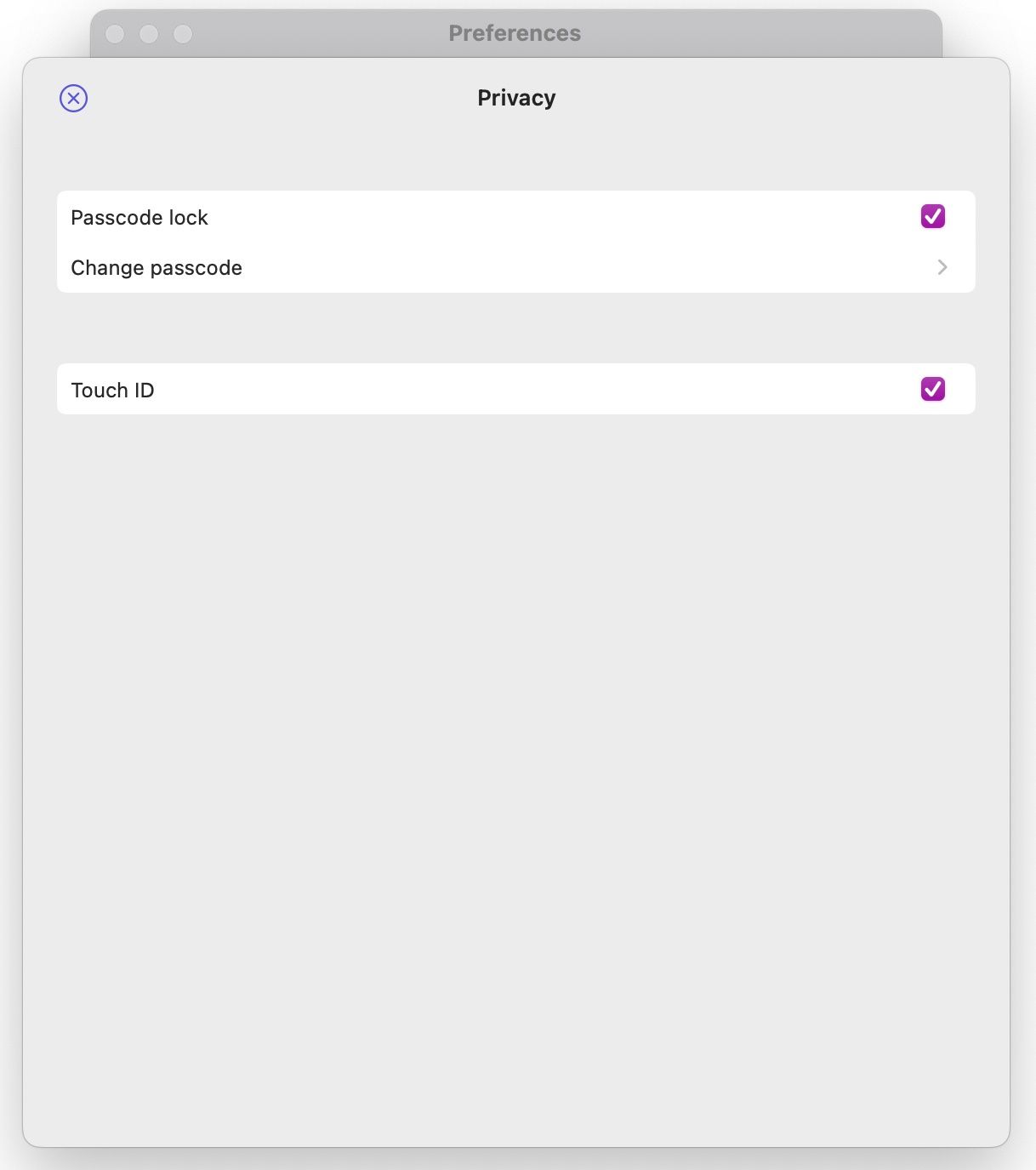
The app supports passcode lock. To enable it, go to Settings > Privacy. Note that you won’t be asked to enter the passcode when the app is running in the background. To enable it, make sure that you close the app. For more information, see How to close an app.
iOS/iPadOS
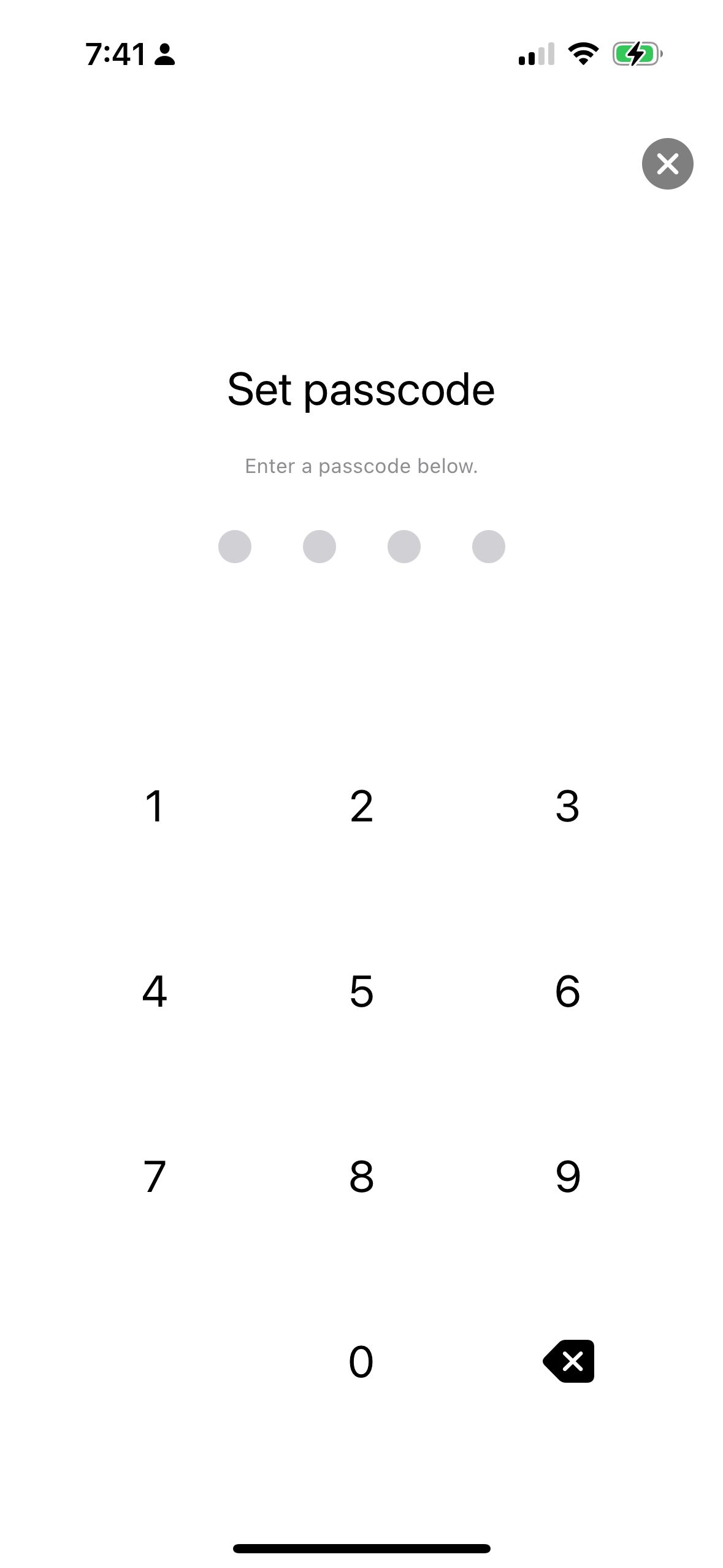
You will be asked to enter a passcode. After that, you will be asked to confirm the passcode. If you enter the same passcode, the passcode lock will be enabled. If you enter a different passcode, you will be asked to enter the passcode again.
macOS
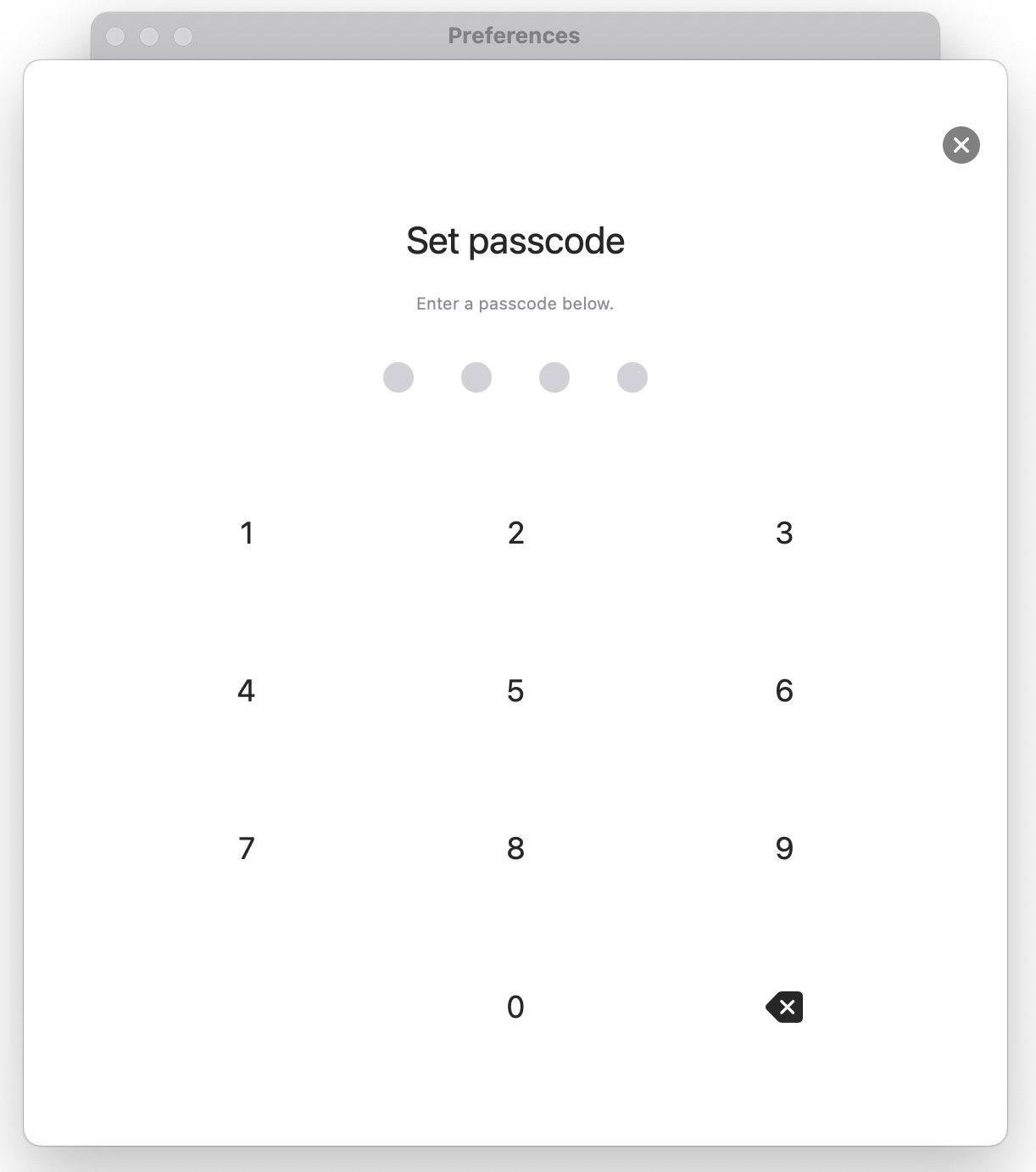
You will be asked to enter a passcode. After that, you will be asked to confirm the passcode. If you enter the same passcode, the passcode lock will be enabled. If you enter a different passcode, you will be asked to enter the passcode again.
If you still have questions, we're here to help. Please get in touch and we'll respond shortly.