Troubleshooting Fetching Changes
If you see Error fetching changes in zone ... :client knowledge differs from server knowledge, update to the latest version of Expenses first, then try the steps below.
If Diagnostics mentions missing sheet user settings, update Expenses first. The app can skip stale personal settings when their sheet is missing, then continue fetching the rest of your iCloud data.
If the issue happens after recent edits on another device, wait for any local saves or deletes to finish syncing, then fetch again. Expenses keeps recoverable save and delete failures queued for another attempt. Manual sync and Force fetch all data from iCloud start processing those pending changes before fetching remote changes. If a fetch is deferred, Expenses retries it with the same incremental or full-fetch scope after the local changes finish.
For more information, see Troubleshooting iCloud Sync.
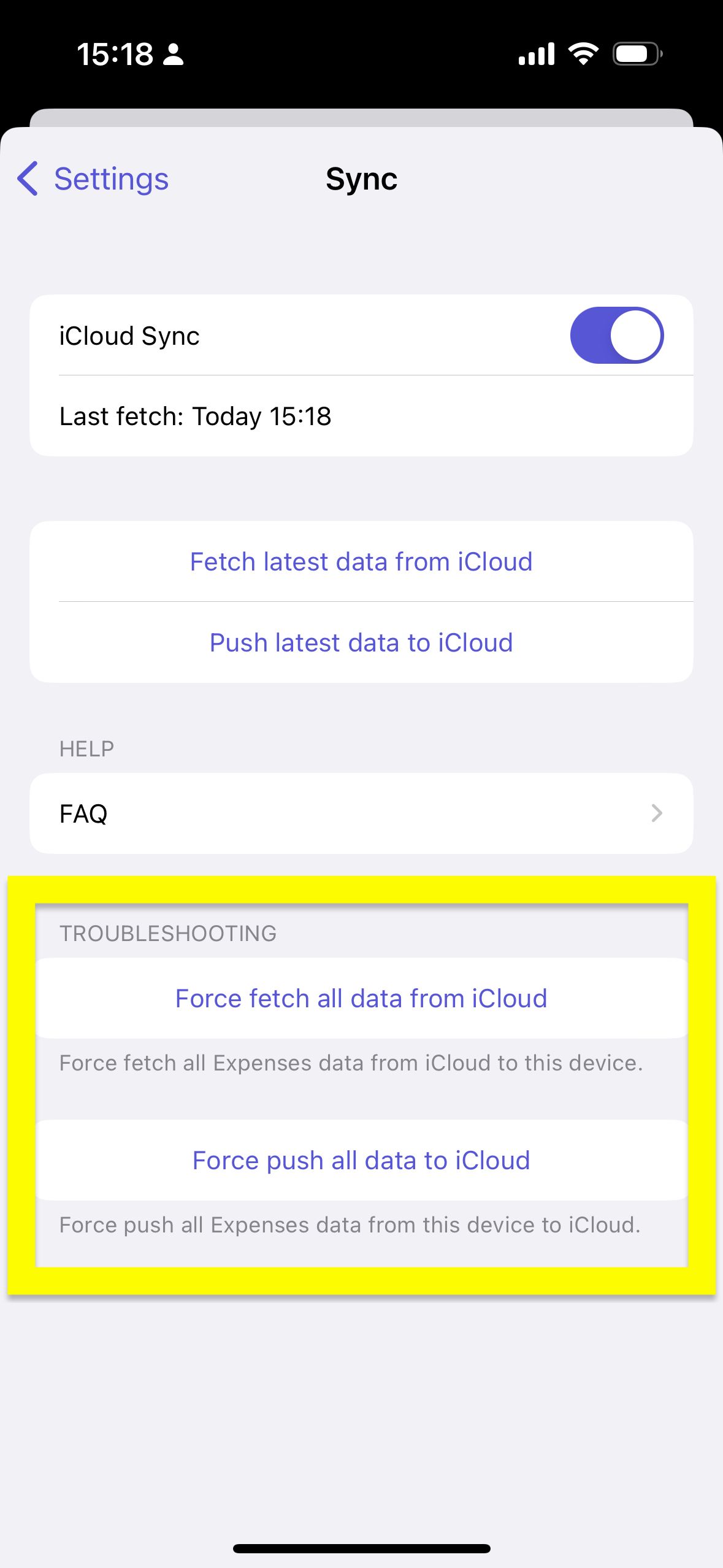
iOS/iPadOS
- Restart your device
- Update Expenses to the latest version
- In Expenses, open
Settings→Sync - Open
Diagnosticsand check whether there is any warning or error related to iCloud, your Apple Account, or sync status - Tap
Force fetch all data from iCloud - If the error continues, tap
Force push all data to iCloudfrom the device that has your latest data - Delete the app and reinstall it
- In Expenses, open
Settings→Sync - If needed, open
Diagnosticsagain and confirm the warning is gone before continuing - Tap
Force fetch all data from iCloud
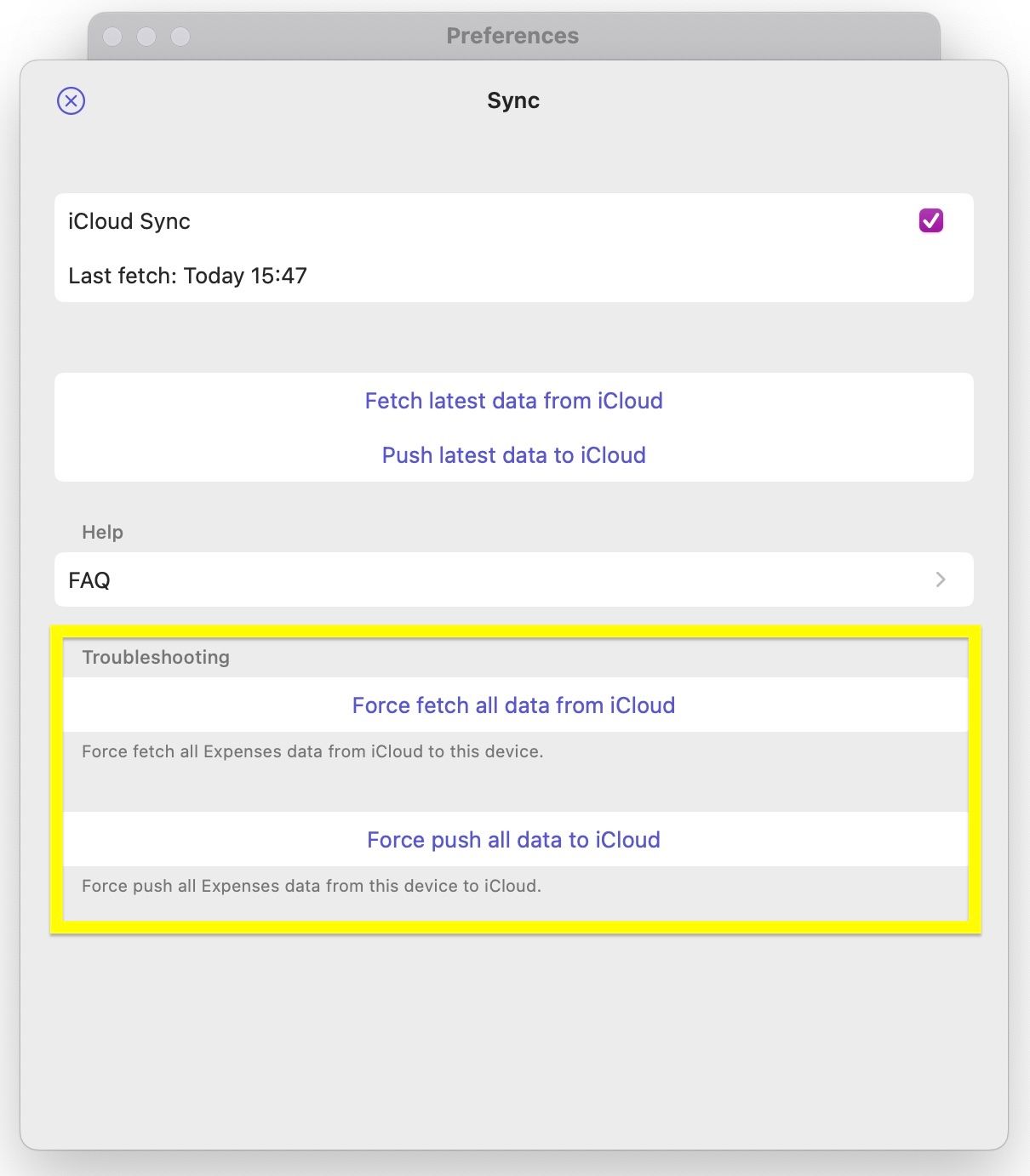
macOS
- Restart your Mac
- Update Expenses to the latest version
- In Expenses, open
Settings→Sync - Open
Diagnosticsand check whether there is any warning or error related to iCloud, your Apple Account, or sync status - Click
Force fetch all data from iCloud - If the error continues, click
Force push all data to iCloudfrom the device that has your latest data - Delete the app and reinstall it
- In Expenses, open
Settings→Sync - If needed, open
Diagnosticsagain and confirm the warning is gone before continuing - Click
Force fetch all data from iCloud
If you still have questions, we're here to help. Please get in touch and we'll respond shortly.